Preparing Artwork and Dielines for a Custom Sleeve
File formats, bleed and safety margins, and common mistakes to avoid when preparing artwork and dielines for a custom sleeve.
Last updated
- 1
Don't wait for finished artwork to get a quote
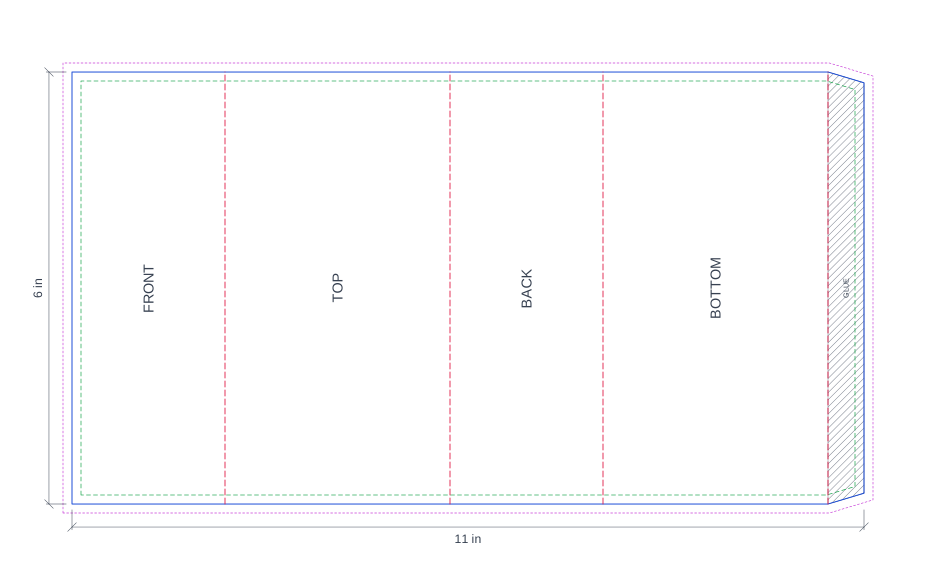
You only need your product type, sleeve style, size, and quantity to get a price. You can make a free dieline - the flat, cut-and-fold outline of your sleeve - for your exact size with our dieline generator, as SVG, PDF, DXF or PNG. When you order, we confirm the exact production dieline with your proof.
- 2
Design in CMYK, not RGB
Screens display color in RGB; print uses CMYK. A file designed in RGB will shift color, sometimes significantly, when it's converted for print. Set your document to CMYK from the start rather than converting at the end.
- 3
Keep a bleed and a safety margin
Extend background colors and images 1/8 inch (3mm) past the cut line (bleed), so small variations in trimming don't leave a white edge. Keep text, logos, and anything you don't want cropped at least 1/8 inch inside the cut line (safety margin) for the same reason.
- 4
Outline fonts or embed them
If a font isn't installed on our end, text can reflow or substitute silently. Convert text to outlines/curves before sending a final file, or embed the font file if your software supports it.
- 5
Flag finishes with a separate layer
Foil stamping, embossing/debossing, and spot UV each need their own vector layer marking exactly where the effect applies, in addition to your base 4-color artwork. Label the layer clearly (e.g. "FOIL") so it isn't printed as ink.
- 6
Review your digital proof before we print
Once your file is laid out on the dieline, we send a digital proof for you to check colors, text, and placement. Nothing goes to production until you approve it, so this is the last point to catch an issue for free.
Frequently Asked Questions
What file formats do you accept?
Press-ready PDF, AI, and EPS. If your file is in another format, our design team can help prepare it - let us know when you request a quote.
I don't have a designer - can you still help?
Yes - free dieline templates and basic design support are included with every order, whether you're placing a logo on a simple layout or need help building the design from scratch.
What resolution should images be?
300 DPI at final print size is the standard for sharp printed results. Lower-resolution images (like most website graphics) will look soft or pixelated once printed.
Can I see a physical proof before the full order prints?
Contact our team to request a physical sample kit of our standard materials and finishes. The digital proof step still applies to every order regardless, since it covers your specific artwork.
Ready to start, with or without finished artwork?
Get a firm price and turnaround from our team.
Or call +1-312-910-5253