A sleeve is small, and people spend about two seconds looking at it. So a good design is not a busy one. It is a clear one. Here is how to get there, even if you have never designed packaging before.
Start with the flat template
A sleeve is printed flat, then folded. If you design on a blank page, your logo may land on a fold or get cut off. So start with a template of your exact size, with the fold lines already marked.
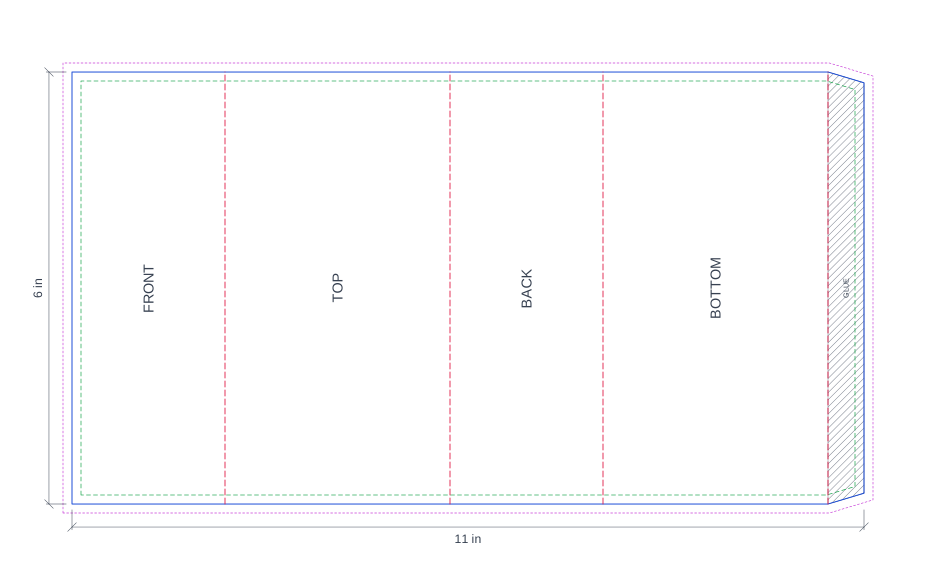
The free dieline generator gives you one. Download it as a PDF or SVG, open it in your design program, and put your artwork on a layer underneath. The lines show you three things:
- Trim (blue): where the sleeve is cut.
- Bleed (pink): run your background color out to here, so a small cutting shift never shows a white edge.
- Safe area (green): keep all text and logos inside this line.
Decide what people should see first
Most sleeves have a front, a back and one or two narrow sides. Give each a clear job, and do not try to say everything everywhere.
| Panel | What goes there |
|---|---|
| Front | Your logo, the product name, and one short line about what makes it special. |
| Back | The story, ingredients or instructions, and the barcode if you need one. |
| Sides | A pattern, a flavor or scent name, or your website. Keep it light. |
| Top or bottom | A color block or small logo. Often hidden, so do not put key information here. |
Keep things away from folds and edges
This is the most common problem we see, and the easiest to avoid.
- Keep text and logos inside the safe area, at least 1/8 inch from any edge or fold.
- Never put important words across a fold. They bend, and they become hard to read.
- The glue flap is hidden once the sleeve is made, so leave it plain.
- If artwork continues around a corner, line it up across the fold, but put nothing you cannot afford to lose right on the fold line.
Make the text easy to read
- Use two fonts at most. One for your name, and one plain one for everything else.
- Make the main name big. It should be readable from a few feet away.
- Keep small print at 6 point or above. Below that, ink fills in and letters blur.
- Use strong contrast. Dark text on a light background, or light on dark. Avoid pale grey on white.
- Do not set small text on a photo or busy pattern. Put it on a plain block of color.
Designing for kraft board
Kraft is brown and natural, and many brands choose it for that look. It also changes how colors print, so plan for it.
- Dark inks, like black, navy and deep green, look rich and crisp on kraft.
- Pale colors and white look muted, because the brown shows through.
- Photos look warmer and softer than on white board.
- If you need bright, exact brand colors, switch to white board (see the SBS / C1S page).
When in doubt, look at the free proof. It is the safest way to see the real effect before you commit.
Barcodes and legal text
- Put the barcode on a flat panel, away from folds, with clear space all around it.
- Print it at full size, dark bars on a light background.
- Check what your product must show, such as ingredients, weight, warnings and contact details. The rules depend on what you sell and where you sell it, so check your local rules.
Seven mistakes to avoid
- Starting without a template, so the layout does not fit the folds.
- Putting logos or key words on a fold or inside the glue flap.
- Forgetting bleed, so a thin white line can show at the edge.
- Setting small text too small, or in a thin font.
- Using pale colors on kraft and expecting them to look bright.
- Cramming everything onto the front panel.
- Approving a proof without checking spelling and the phone number or website.
A simple way to check your design
Print the dieline and your design at 100 percent size on normal paper. Cut it out, fold it, and tape it around your product. It takes five minutes. You will spot problems straight away, like text on a fold or a logo that is too small. Then send us the file, and we will check it again when we make your proof.
For file formats, color settings and the full checklist, see preparing artwork and dielines.